Chapter 3. The Dining Room
What a UI is: websites, web apps, mobile and watch
Chapter title card with the chapter's host character and the day of the countdown.
The grey button
Day 4, mid-morning. Meera's Corner smells of cardamom and steamed milk. Pixel, the design student who works weekend shifts, leans over Jo's shoulder at the corner table and looks at the live menu page for exactly two seconds.
Jo scrolls. There is, in fact, a sparkle icon.
Meera Aunty sets down two cuttings and pulls up a stool.
Pixel flips over a paper napkin and draws four boxes in a row: Menu → Item → Cart → Pay.
Yesterday you put a page on the internet. Today you turn it into something people can use: the user interface, the part of software you can see and touch. This chapter is about what a UI is made of, the different places a UI can live, and one rule about the dining room that every app-builder has to learn.
- Name the parts of any screen: layout, components, states and navigation
- Choose between a website, web app, mobile app, desktop app or watch app, and explain why a web app comes first
- Use five design basics to make AI-built screens look intentional, not generic
- Build QueueLess's menu and cart with every state handled
- Explain why anything in the browser can be changed by the user
What a UI actually is
A UIUI (user interface)Everything a person sees and taps in an app: screens, menus, buttons and forms. (user interface) is everything between a person and the software: the screens, buttons, text, colours, sounds and even the little vibration when you tap "Pay". Some people say UX (user experience) too. UI is what it looks like; UX is what it's like to use. Good UX is Rohit ordering one-handed without thinking.
The anatomy of a screen
Every screen you've ever used, from WhatsApp to your bank, is made of the same four things. Once you can name them, you can describe any screen to Sous precisely.
Layout
LayoutLayoutWhere things sit on a screen: header, content, sidebars, a bar fixed to the bottom. is where things sit. A header at the top, a list in the middle, a button stuck to the bottom. On a phone, layouts are mostly one column, stacked. On a laptop, you might have a sidebar and two columns.
Describe layouts by region: "A sticky header with the café name. A scrolling list of menu items. A cart bar fixed to the bottom of the screen."
Components
A componentComponentA reusable building block of a UI, such as a button, card or drawer, built once and used many times. is a reusable building block. You build a "menu item card" once and use it twenty times. The common ones have names everyone, including Sous, understands:
| Component | What it is | In QueueLess |
|---|---|---|
| Button | Something you tap to do an action | "Add", "Checkout", "Pay ₹130" |
| Input | A box you type into | Name, phone number, "Any special requests?" |
| Card | A box grouping related things | One menu item: name, price, photo, Add button |
| Modal (dialog) | A box that pops over the page and needs an answer | "Remove bun maska from your cart?" |
| Drawer (sheet) | A panel that slides in from an edge | The cart, sliding up from the bottom |
| Badge | A small label or count | "3" on the cart icon; "Bestseller" |
| Toast | A brief message that appears and fades | "Masala chai added" |
Using these exact names in prompts gets you far better results than "a box thing that pops up".
States
This is the part almost every AI-built app gets wrong. A screen isn't one picture. It's several, depending on what's going on. Every screen that shows data needs at least four statesUI statesThe different versions of a screen depending on what's happening: empty, loading, error and success.:
- Empty: nothing here yet. "Your cart is empty. The masala chai is very good."
- Loading: waiting for data. A spinner, or grey placeholder shapes called skeletons.
- Error: something failed. Say what happened and what to do: "Couldn't load the menu. Check your connection and try again." Plus a Try again button.
- Success: the happy path, with real content. Plus confirmations: "Order placed! Pick up at the counter in about 5 minutes."
Sous builds the success state beautifully, because that's what you described. Ask for the other three by name, or you won't get them.
Picture Rohit in the queue. His phone is on weak 4G. He taps "Menu" and sees… a blank white screen. Is it broken? Loading? Did he do something wrong?
He gives up and orders at the counter. A loading state would have kept him. An error state with "Try again" would have rescued him. The happy path is maybe a quarter of the design work.
Navigation
NavigationNavigationHow people move between screens: tabs, links, back buttons and menus. is how people move between screens: tabs at the bottom, a back arrow, a menu icon, links. Good navigation answers three questions at a glance: where am I, where can I go, how do I get back?
For QueueLess, Pixel's rule is simple: a customer should reach "Pay" in four taps or fewer from opening the app.
Spot the Missing State
Find the screens missing an empty, loading or error state.
- ▸ Each screen comes with a situation.
- ▸ Pick which state the screen is missing.
- ▸ A timer runs per screen.
The surfaces: where a UI can live
"Build me an app" can mean very different things. Here are the main surfacesSurfaceA place where a UI lives: a website, web app, mobile app, desktop app, watch or chat. a UI can live on, and when to pick each.
| Surface | What it is | Built with | Pick it when |
|---|---|---|---|
| Website / landing page | Mostly pages to read: info, marketing, a menu | HTML, Next.js, Webflow, Framer | You need to explain, attract and be found on Google |
| Web app / SaaS | An app in the browser: log in, do things, save data | Next.js, React | You want something people use, on any device, with one codebase. Most products start here |
| PWA | A web app that can be "installed" to the home screen and work a bit offline | A web app plus a manifest and service worker | You want app-like feel without app stores |
| Native mobile | An app from the App Store or Play Store | Swift (iPhone) or Kotlin (Android); or one codebase with React Native/Expo or Flutter | You need the camera, push notifications, offline use or deep phone features, and you have users who want it |
| Desktop app | An app you install on a laptop | Electron or Tauri (web tech in a desktop shell) | People live in it all day, or it needs local files |
| Watch / wearable | Glanceable screens on a wrist | SwiftUI on watchOS; Jetpack Compose for Wear OS | Almost always a companion to a phone app: "Your chai is ready" on the wrist |
| Chat / agent UI | Your product inside Slack, WhatsApp, or an AI assistant | Bots, APIs, MCP servers | Your users already live in that chat, and the task is a quick ask-and-answer |
A few notes on the less obvious ones:
- A PWAPWA (progressive web app)A web app that can be added to a phone's home screen and open full-screen like an app, without an app store. (progressive web app) sits halfway between a website and an app. You visit it in the browser, tap "Add to Home Screen", and it opens full-screen with its own icon. For a café, that's often enough.
- A native appNative appAn app installed from the App Store or Play Store, built for the phone platform (Swift, Kotlin) or with cross-platform tools like Expo or Flutter. is built specifically for one phone platform. Expo (built on React Native) and Flutter let one codebase run on both iPhone and Android, and AI tools handle Expo well. Store review, developer fees and update delays come with the territory.
- Watch apps are tiny. A watch screen is about the size of a postage stamp. You show one fact and one or two buttons. Nobody browses a menu on their wrist.
- Chat UIs are growing fast. Some products now live mainly inside an AI assistant, as a connector that does one job well.
Why a web app is the right first product
For QueueLess, and probably for your first product, the answer is a web app, built phone-first. Here's why:
- One codebase, every device. It works on iPhones, Android phones, laptops and tablets the day you ship it.
- No app store. You deploy in a minute with Vercel. No review, no waiting, no fees per download.
- Instant updates. Fix a bug, push, and every customer has the fix on their next visit.
- Zero install friction. Rohit scans a QR code at the counter and he's ordering. Asking a stranger to download an app loses most of them.
- AI is great at it. Next.js, Tailwind and React are the most common patterns in Sous's training. Fewer mistakes, faster fixes.
Later, if customers ask for push notifications or a home-screen icon, you can make it a PWA. If thousands of regulars want a proper app, you can build one with Expo, reusing your server and database. You don't have to decide that today.
In February 2025, indie maker Pieter Levels built fly.pieter.com, a simple multiplayer flight simulator that runs in the browser, with AI's help in about three hours. No app store, no download, just a link. He reported it reached $1 million in annual revenue within 17 days, mostly from in-game ads, by his own account.
The graphics were blocky. The surface was "just" a web page. What mattered was a fun idea, shared loudly, that anyone could try in one tap.
Design basics for non-designers
You don't need to become a designer. You need five basics, so you can tell Sous what's wrong with a screen and how to fix it.
1. Hierarchy
HierarchyVisual hierarchyArranging a screen so the most important things are the most noticeable, using size, weight, colour and position. means the most important thing is the most noticeable. On a menu, that's item names and prices, then the Add button. Not the logo. Not the sparkle icon.
Squint at your screen until it's blurry. What stands out? If it's not the thing that matters most, change size, weight or colour until it is.
2. Spacing
Cramped screens feel cheap; generous spacing feels calm and expensive. Use a consistent scale, such as 4, 8, 12, 16, 24, 32 pixels, rather than random gaps. Tailwind does this for you: p-2 is 8px, p-4 is 16px, p-6 is 24px.
Related things sit closer together. The item name and its price are close; two different menu items have more space between them.
3. Type scale
Pick a few text sizes and stick to them: one for headings, one for item names, one for body text, one for small print. Too many sizes look messy. On phones, body text should be at least 16px, so nobody has to pinch-zoom. Use one font family, two at most.
4. Colour and contrast
Use one main brand colour (Meera's deep chai orange), one or two neutrals, and colours with a meaning: green for success, red for errors. Use your brand colour for the main action, like Add and Pay, so people know where to tap.
ContrastContrastHow much text stands out from its background. Normal text should have a contrast ratio of at least 4.5:1 to be readable. is how much text stands out from its background. Pale grey on white looks stylish and is unreadable in sunlight. The accessibility guideline is a contrast ratio of at least 4.5:1 for normal text. Browser DevTools and free online checkers will tell you the ratio.
That's part of accessibilityAccessibilityMaking software usable by everyone, including people with low vision, colour blindness, limited movement or a screen reader.: making your app usable by everyone, including people with low vision, colour blindness, shaky hands or a screen reader. Big tap targets (about 44px), real labels on inputs, and not using colour alone to show meaning go a long way. Mrs. Kapoor, seventy-eight, a regular since 1998, will thank you.
5. Phone-first, responsive design
Responsive designResponsive designLayouts that adapt to the screen size, usually designed for phones first and then spread out for larger screens. means the layout adapts to the screen size. Design for the smallest screen first, then let it spread out on bigger ones. It's much easier than squeezing a laptop design onto a phone.
Most of Meera's customers will use QueueLess on a phone, in a queue, with one thumb. So: big buttons in the bottom half of the screen, where thumbs reach, and nothing important hidden behind hover effects, because phones can't hover.
Why AI apps all look the same
Sous learned from millions of websites, so when you say "make it look nice", it gives you the average of all of them: purple-to-blue gradients, rounded cards, a sparkle icon, grey text. Pixel calls it "the AI look". It's not ugly. It's just forgettable.
The fix is a design systemDesign systemA written set of design decisions (colours, fonts, spacing, components) that keeps every screen consistent.: a short set of decisions written down once. Your exact colours, fonts, spacing scale, corner radius and how buttons look. Then every prompt says "follow our design system", and every screen looks like it belongs to the same café. You'll build one properly in Chapter 12. For now, giving Sous three specific choices ("deep orange #C2410C, cream background, chunky rounded buttons") already beats "make it nice".
The golden rule of the dining room
This is the most important idea in the chapter, and one of the most important in the book.
Anything in the UI can be read and changed by the user.
When someone opens your web app, their browser downloads your page's code (the HTML, the CSS and the JavaScript) onto their device. It's theirs now. Every browser comes with DevToolsDevToolsDeveloper tools built into every browser that show a page's code and let you inspect and edit your own copy of it live., a built-in panel for developers that lets anyone see that code and edit it live, on their own screen.
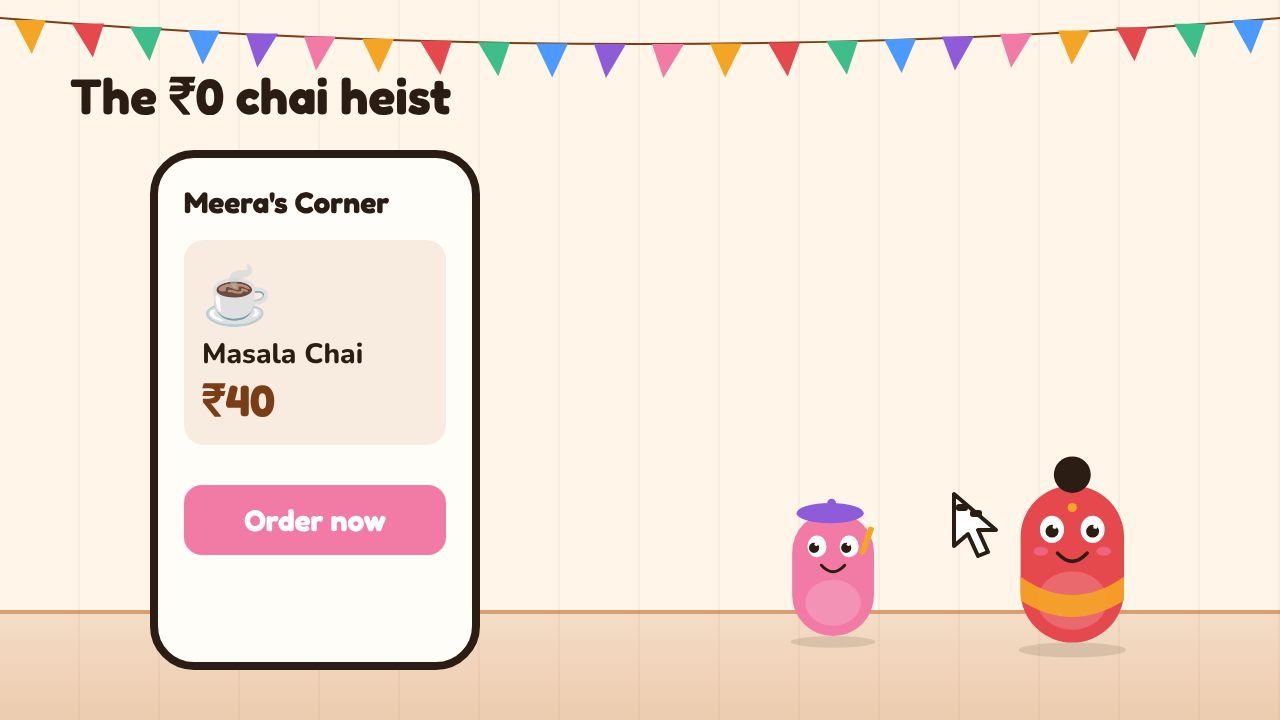
On a phone ordering screen, a cursor edits the price of masala chai from 40 to 0 rupees in browser developer tools and places the order. Meera is shocked; a stamp reads 'Trusted the browser'.
That means a customer can, on their own phone or laptop:
- Read everything you sent: text, hidden elements, data, and any keys you put in the code
- Change prices shown on the page
- Reveal hidden buttons (an "Admin" button you only hid with CSS)
- Flip flags like
isAdmin = trueorisPremium = truein the page's code - Change what the page sends to your server when they tap "Pay"
This isn't hacking in the movie sense. It's how browsers work, and it's been true since the 1990s. DevTools exist so developers can debug their own pages.
So the question isn't "can a customer change the price on their screen?" They always can. The question is: does your app believe them? If the page tells your server "one masala chai, ₹0" and your server says "OK!", that's a bug, and it's your bug.
- AI puts prices and totals in the browser. Sous will happily calculate the cart total in the page and send it to the server as "the amount to charge". The server must look up prices itself.
- Hiding is not protecting. An "admin" button hidden with CSS, or a page with no link to it, is still reachable. Real protection happens on the server (Chapter 6).
- Keys in front-end code are public. Anything Sous puts in a file that runs in the browser can be read by anyone. Secret keys belong on the server only (Chapter 4).
- The AI look. Ask for specific colours, fonts and spacing, or you'll get the average of the internet.
- Missing states. Ask for empty, loading and error states by name on every screen that loads data.
Trust Nothing in the Browser
See why a price shown in the browser can't be trusted, then fix the checkout.
- ▸ Look at the pretend shop's page and its checkout code.
- ▸ Answer what a customer could change on their own device.
- ▸ Choose where the price check belongs.
Building the dining room
Time to turn Pixel's napkin into real screens. You'll use claude.ai for thinking and sketching, and Claude Code in your queueless repo for building.
Design and build the ordering screens
⏱ 75 min0/6Take screenshots of three ordering apps you like on your phone: a food delivery app, a coffee chain's app, anything with a menu and a cart. Open a new chat in your QueueLess project on claude.ai, attach the screenshots, and paste:
💬Find the patterns in apps I likepaste into ClaudeThese are screenshots of three ordering apps I like. For each, describe the layout, the main components (buttons, cards, drawers, etc.) and how you get from the menu to paying. Then list the patterns all three share, and the one thing each does that the others don't. Finally, suggest which 3–4 patterns suit a small chai café whose customers order one-handed on a phone while standing in a queue.
✅ You should see: A breakdown of each app, a list of shared patterns (such as a sticky cart bar, big Add buttons, item photos, a bottom sheet for the cart) and a short recommendation.Draw the flow on paper: Menu → Item → Cart → Checkout. Four boxes, one per screen, with arrows. Inside each box, sketch roughly what's on it. Ten minutes, no rulers.
Or ask Claude for a quick clickable mockup:
💬Make a clickable mockup of the flowpaste into ClaudeMake a clickable phone-sized mockup (as an artifact) of an ordering flow for Meera's Corner, a chai café: Menu → Item detail → Cart → Checkout. Use this real menu only: Masala chai ₹40, Cutting chai ₹25, Ginger chai ₹45, Bun maska ₹50, Veg sandwich ₹90. Design: deep chai orange (#C2410C) for main buttons, cream background, dark brown text, big rounded buttons in the bottom half of the screen. No gradients, no sparkle icons. Checkout can be fake; no real payments.
✅ You should see: A sketch or mockup you can tap through. Ask yourself: can Rohit get to Pay in four taps?In your terminal, go into the
queuelessfolder, startnpm run devin one tab andclaudein another. Commit first:git add -A git commit -m "Before menu and cart UI"Then ask Claude Code:
💬Build the menu list and cart drawerpaste into ClaudeIn this Next.js app, build the ordering UI for Meera's Corner using shadcn/ui and Tailwind. 1. Set up shadcn/ui if it isn't already, and add the Button, Card, Sheet and Badge components. 2. Menu page: show the items from src/data/menu.ts as cards (name, price, an Add button). One column on phones. 3. A cart bar fixed to the bottom showing item count and total, e.g. "2 items · ₹65 · View cart". 4. Tapping it opens a Sheet (drawer) from the bottom listing cart items with + and – buttons and a Checkout button. Checkout can just show "Coming soon" for now. 5. Keep the cart in React state for now (no database yet). Design: deep chai orange (#C2410C) for main buttons, cream background, dark brown text, 16px minimum body text, tap targets at least 44px. Show me your plan and the files you'll touch before writing code.
Read the plan, approve it, and approve file changes as they come.
✅ You should see: At localhost:3000, a menu of five cards. Tapping Add updates the bottom bar. Tapping the bar slides up a cart drawer with + and – buttons.😵 Stuck?
If the shadcn setup asks questions in the terminal, it's fine to accept the defaults. If something breaks, paste the whole error to Claude Code. If it all goes wrong,git restore .and try a smaller step.Commit what works, then ask for the missing states:
💬Add every state to the cart and menupaste into ClaudeAdd proper states to the menu and the cart drawer: - Empty cart: a friendly message ("Your cart is empty. The masala chai is very good.") and a button that closes the drawer. - Loading: skeleton cards while the menu loads. Simulate a 1.5 second delay for now so I can see it. - Error: if the menu fails to load, show "Couldn't load the menu. Check your connection and try again." with a Try again button. Add a temporary way for me to trigger it (a ?error=1 query parameter). - Success: a short toast when an item is added ("Masala chai added"). Tell me how to see each state in the browser.✅ You should see: You can see all four: an empty cart message, grey skeletons while loading, an error box atlocalhost:3000/?error=1, and a toast when adding.Commit and push to a branch, so Vercel makes a preview deployment:
git checkout -b menu-ui
git add -A
git commit -m "Menu, cart drawer and states"
git push -u origin menu-ui
Open your project on vercel.com. Under Deployments, find the one for
menu-uiand open its preview URL on your phone. Order a chai one-handed.✅ You should see: The preview URL works on your phone. The cart bar sits within thumb reach, text is readable without zooming, and buttons are easy to hit. Note anything awkward and ask Claude Code to fix it.😵 Stuck?
If the preview is behind a Vercel login, that's preview protection. Sign in with the same account on your phone, or check the project's deployment protection settings.Now let's see the golden rule for real, on your own app. On your laptop, open your localhost or preview page in Chrome or Edge.
- Right-click the price of Masala chai and choose Inspect. DevTools opens with that bit of HTML highlighted.
- Double-click the text
₹40in the Elements panel, change it to₹0, and press Enter. - Look at the page.
✅ You should see: The page now shows Masala chai at ₹0. Nothing stopped you, and the page believes you. Refresh, and it's back to ₹40, because you only changed your own copy.Here's the uncomfortable bit. Right now, QueueLess calculates the cart total in the browser. If checkout trusted that total, a customer could pay whatever their page said. You're not taking payments yet, so nothing is at risk. Chapter 4 moves prices to the server, where customers can't touch them. Write that down as a to-do.
- In claude.ai, ask: "Show me the QueueLess menu screen twice: once as a Next.js page with Tailwind, and once as an Expo (React Native) screen. Keep the design the same."
- Compare the code side by side. Notice
divandbuttonon the web versusView,TextandPressablein Expo. - Ask: "What would I need to ship the Expo version that I don't need for the web version?" (Hint: app store accounts, builds, review.)
- Decide for yourself why we're starting on the web.
This screen looks like a generic AI-built app. Restyle it with these decisions only:
- Brand colour: deep chai orange #C2410C for main actions only
- Background: warm cream #FFF7ED; text: dark brown #431407
- Font: one family; headings bold, body 16px
- Corners: rounded-xl on cards and buttons
- No gradients, no sparkle or AI icons, no grey buttons

Check every text colour against its background meets a 4.5:1 contrast ratio and tell me any that don't.
What you've learned
- A UI is the dining room: everything users see and touch. Every screen is layout, components, states and navigation.
- Every screen that loads data needs empty, loading, error and success states. Ask for them by name.
- UIs live on many surfaces: websites, web apps, PWAs, native mobile, desktop, watches and chat. Start with a phone-first web app.
- Hierarchy, spacing, a type scale, contrast and phone-first layout make AI screens look intentional. A design system fixes the AI look.
- Anything in the browser can be read and changed by the user. The browser shows; the server decides.
The ₹0 chai
Evening. The menu-and-cart preview has been on Meera's counter all afternoon on a little stand with a QR code, "for testing". Ananya, a college student and a regular, comes up to the counter grinning, holding out her phone.
Ananya turns her phone around. On the screen: the QueueLess cart. 1 × Masala chai. Total: ₹0.
Ananya shrugs. She's a computer science student. She opened DevTools on her own phone browser during a boring lecture, changed the number, and pressed checkout.
Pixel looks at the ceiling. Dev Uncle, as if summoned, is already on the stairs. But it's Chef Ravi who leans out of the kitchen door, wiping his hands.
Checkpoint quiz
Which four states should almost every data screen have?
Badge: Front of House
Figures are as reported by the linked sources (many are founder- or vendor-reported). Tools and prices change monthly.